Synopsis: When receiving an AFAD unit, you will need to pair your remote to the unit in order to operate it. This guide will show you the steps necessary to pair your remote.
- Level: Easy
- Time required: 1-2 minutes
- Additional equipment required: None
1. Log into your touch screen via the Admin login
Figure 1 - Admin login
2. Go to Options - Wireless Remote and press Add (Scan)
Figure 2 - Wireless remote option
Figure 3 - Add (Scan) button
3. Press any button on your wireless remote until a MAC address shows up. Press save after the MAC address appears.
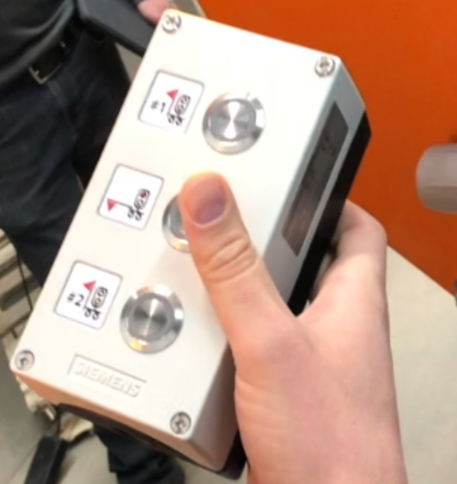
Figure 4 - AFAD controller
Figure 5 - Empty remote list
Figure 6 - Detected MAC address
4. Your remote should now be paired with your AFAD unit
Figure 7 - Saved MAC address
If you require any additional help, contact our toll-free number at 1-888-488-7446 or email us at support@ver-mac.com
Comments
0 comments
Please sign in to leave a comment.