Synopsis: Sometimes, you may need to synchronize your arrow board controller with the power box located on the back of the arrow board itself. This usually happens upon receiving a new arrow board that isn’t synchronized, or if the controller or box power box is replaced.
- Level: Medium
- Time required: 2-5 minutes
- Additional equipment required: Philips screwdriver, magnet (usually included)
1. Remove power from the Power Box by disconnecting the 10-pin connector
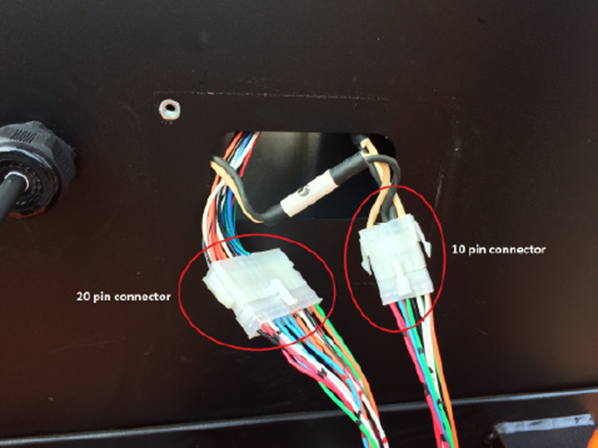
Figure 1 - 10-pin connector
2. Turn on the controller and press Parameters (wrench icon)
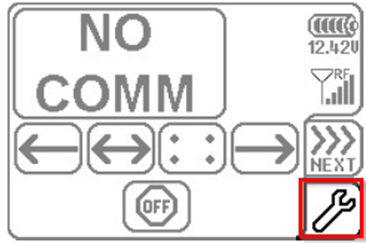
Figure 2 - Parameters
3. In the Parameter screen, tap Communication Settings
Figure 3 - Communication settings
4. In the Communication Settings screen, tap Search for new arrow
Figure 4 - Search for new arrow
5. When the Waiting for synchronization screen is displayed, hold the magnet on the letter "P" on the Power Box
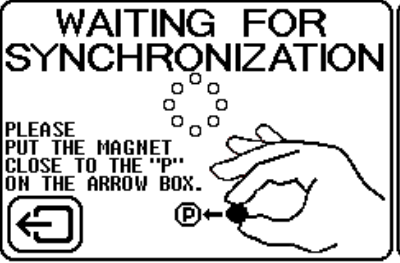
Figure 5 - Waiting for synchronization
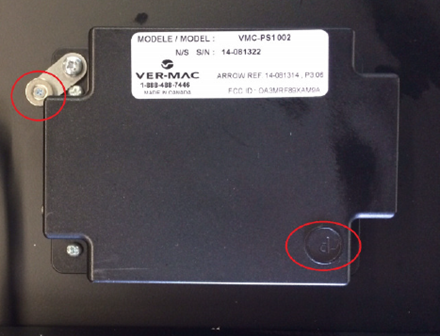
Figure 6 - Magnet & letter P
6. Return power to the Power Box by reconnecting the 10-pin connector that was disconnected in Step 1
Note: It is crucial to LEAVE THE MAGNET ON THE ‘’P’’ until sync is complete
7. When the New Arrow Detected screen appears with the MAC Address, tap the YES checkmark
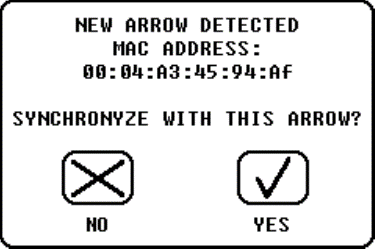
Figure 7 - New arrow detected
8. When the Synchronization screen appears, synchronization should be established within seconds
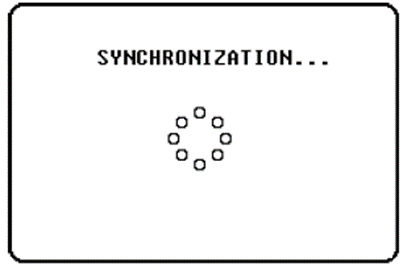
Figure 8 - Synchronization
9. Arrow successfully synchronized! will be displayed before the main screen reappears
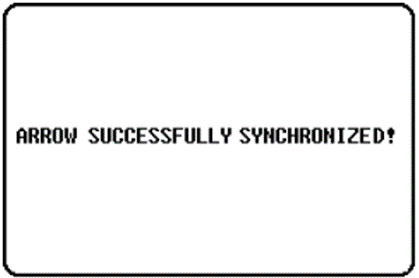
Figure 9 - Successful sync
10. The main screen automatically displays. You can now remove the magnet and use your arrow board
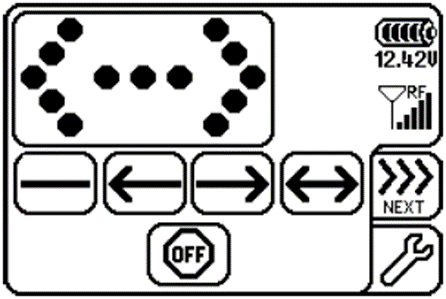
Figure 10 - Home screen
If you require any additional help, contact our toll-free number at 1-888-488-7446 or email us at support@ver-mac.com
Comments
0 comments
Please sign in to leave a comment.