Synopsis: Once your TLDs are paired, you will be able to log in and create a signal plan for your work zone. It is recommended that you drive through the work zone yourself and calculate the time it takes to complete the run in order to have the most accurate times possible.
- Level: Easy
- Time required: 3-5 minutes
- Additional equipment required: None
Related Articles: How to pair your TLD traffic lights (GPS)
1. From the GPS 1 unit, log into the V-Touch controller using the Admin login

Figure 1 - Login screen

Figure 2 - GPS 1 Icon
2. Go to Edit and press the plus (+) button on the right-hand side twice to create two traffic phases.
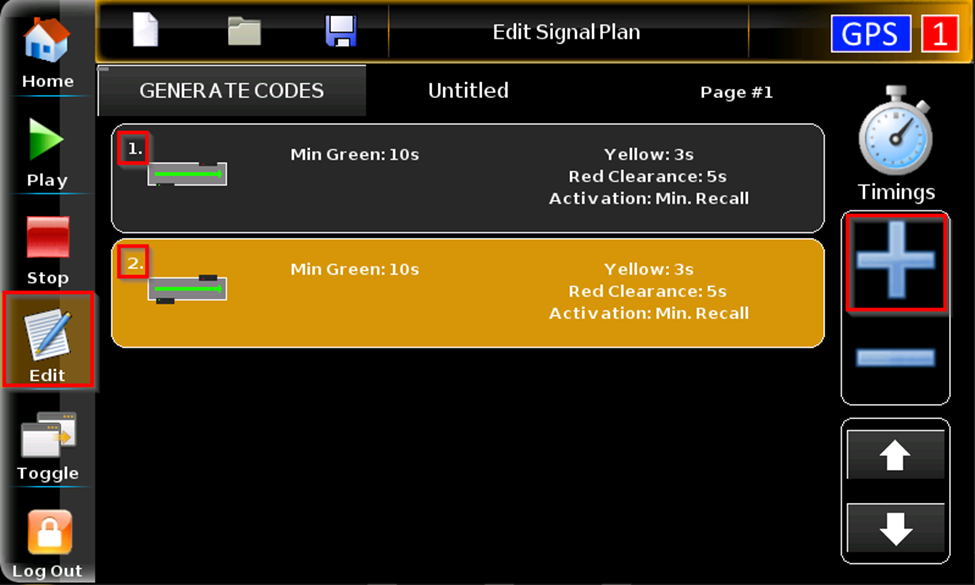
Figure 3 - Edit screen
3. Tap twice on traffic phase #1 and edit the timings. When the timings are set, hit Apply and press Back

Figure 4 - Signal plan 1

Figure 5 - Inside signal plan 1

Figure 6 - Timings
Note: By pressing between both arrows, a keyboard will pop up and allow you to enter times manually
Minimum green: The shortest amount of time the signal displays green for a particular traffic movement.
Yellow time: The time during which the light will stay yellow (usually is left at 3 seconds by default).
Red time: The time it will take to clear the work zone before the other light turns green. It is recommended to put more red time than needed to avoid any collisions or roadblocks.
4. Tap twice on traffic phase 2 and modify your timings like in step #3

Figure 7 - Signal plan 2
5. Change the direction of the green arrow by pressing on the traffic light in the upper right-hand corner of the screen. When the arrow is pointing left, press Back
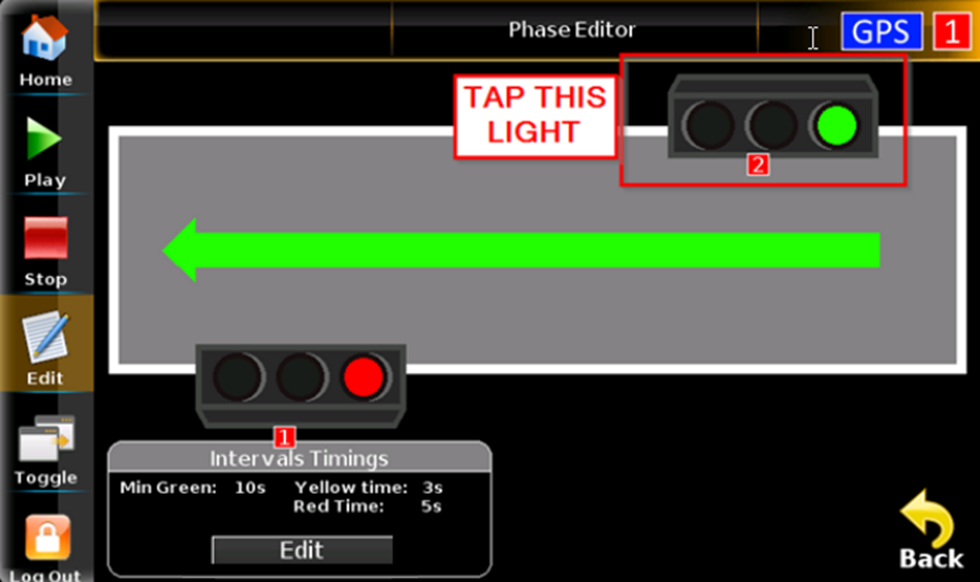
Figure 8 - Inside signal plan 2

Figure 11 - Signal plan 2 complete
6. Ensure the timings for both traffic phases are correct and that you have one green arrow pointing right, and one pointing left. If OK, press Save and give your signal plan a name

Figure 12 - Save icon

Figure 13 - Signal plan name
7. Once the signal plan is saved, press Generate Codes and write them down

Figure 14 - Codes
Note: GPS 1 will use Code 1, GPS 2 will use Code 2
8. Press Play and enter Code #1 and Group Code

Figure 15 - Code 1

Figure 16 - Group code
9. Go to your secondary unit, press Play, and enter Code #2 and the Group Code. Once the second code is entered, the traffic lights will activate and communicate with each other
Note: When your signal plan starts, it is normal that both lights start off as red. This is due to the start-up mode selected in the initial pairing procedure. After running one cycle, your signal plan will kick in.
If you require any additional help, contact our toll-free number at 1-888-488-7446 or email us at support@ver-mac.com
Comments
0 comments
Please sign in to leave a comment.