Synopsis: Using the V-Touch Controller inside of the sign case of your speed wizard, you will have the ability to program the speed limit that will display on your sign in your work zone. The message on the bottom sign case will vary depending on the speed captured.
- Level: Easy
- Time required: 5 minutes
- Additional equipment required: None
SP-3248-DSL Sign Case Overview
- Total cards in upper sign case: 2
- Total cards in lower sign case: 6
Figure 1 - Upper sign case breakdown
Figure 2 - Lower sign case breakdown
1. Log into the V-Touch controller and press Toggle, then Options, then Pixel Test
Figure 3 - Pixel test
2. Press Start on the pixel test screen to see where the pixel issue is
Note: Since the Speed Wizard has two sign cases, it is important to understand which error code leads to which sign case.
2.1. Pixel Error Column 1 = Upper Sign Case
2.2. Pixel Error Column 2, 3 or 4 = Lower Sign Case
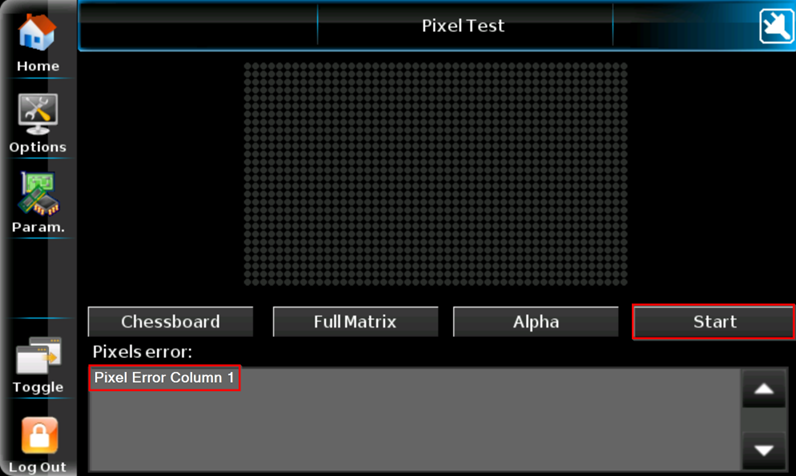
Figure 4 - Pixel test screen
3. Press Chessboard to run the pixel test
How the Chessboard Pixel Test works:
Figure 5 - Pixel test flow in upper sign case
Figure 6 - Pixel test flow in lower sign case
3.1. Pattern starts at the left card in the upper sign case, then goes to the lower sign case
3.2. Data will go through each display card and light up the LEDs on them
3.3. When the data gets to the end of the row/column, it will hit the end line jumper and data will be sent to the next row/column
3.4. If there is an error with one of the display cards, the data will not reach it and therefore it will not light up
3.5. It is important to have the end line jumper connected at the bottom of each column
How to identify the bad display card in Column 1:
3.6. The data will light up the display cards one by one in Column 1
When the pixel test stops running, it means it hit a defective display card
Figure 7 - Defective display card
In Figure 7, the right display card in upper sign case could be defective as it does not light up after receiving data. If this happens, it is normal that the bottom sign case does not light up at all, as data is not making it there.
4. Solutions to fix pixel error
4.1. Replace the bad display card with a known working display card and your Pixel Error will go away. If you do not have any spares, you will need to purchase some
If you require any additional help, contact our toll-free number at 1-888-488-7446 or email us at support@ver-mac.com
Comments
0 comments
Please sign in to leave a comment.